Home Battery App Setup Guide: Maximising Your Battery from Day One
Most home batteries ship with generic settings that don't match Irish tariff windows or usage patterns. This guide shows you how to configure your battery app for maximum savings.
By Smart Solar Editorial · Updated 15 May 2026 · 8 min read
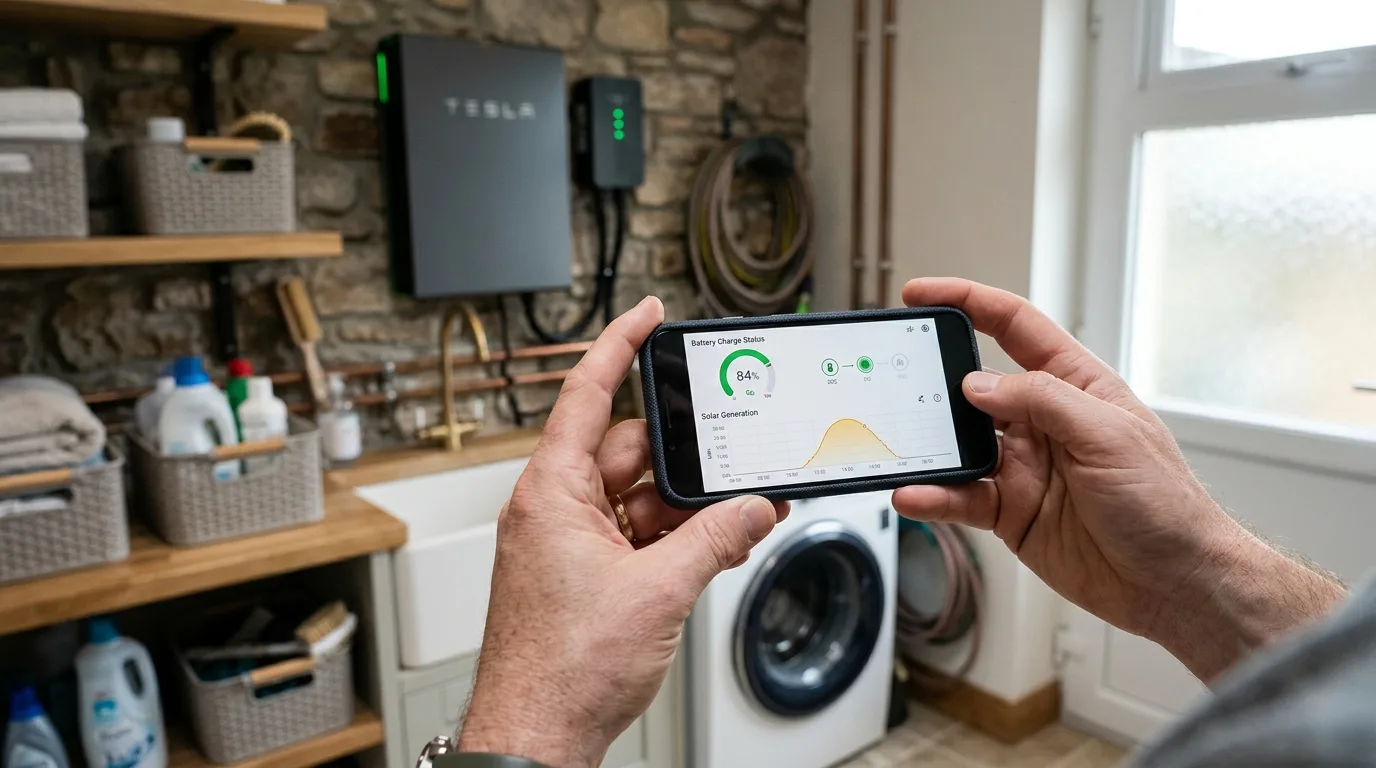
Why App Configuration Matters
Your battery's Energy Management System (EMS) — controlled through the manufacturer's app — determines when the battery charges, when it discharges, and how it responds to solar generation and grid tariff windows. Most installers configure basic settings during commissioning, but "basic" rarely means "optimal."
An incorrectly configured battery might:
- Charge during expensive peak hours instead of the cheap night rate
- Discharge during the night when the grid is cheap, leaving nothing for the expensive morning peak
- Export solar surplus before filling the battery first
- Never use the backup reserve correctly
Spending 30–60 minutes with your app in the weeks after installation to verify and optimise your settings can be worth €200–€500 per year in additional savings.
GivEnergy: MyGivEnergy App
App name: MyGivEnergy Platform: iOS and Android; also accessible via web browser at portal.givenergy.cloud Key features: Real-time energy flow, historical data, time-of-use settings, smart charge, EPS configuration
Setting Up Time-of-Use (TOU) Charging
For Electric Ireland Smart Plan (02:00–04:00 night rate):
- Open MyGivEnergy → Settings → Battery
- Select Timed Charge 1:
- Start: 02:00
- End: 04:00
- Charge Power: 5.0 kW (or your inverter's maximum)
- Target SoC: 100%
- Select Timed Discharge 1 (optional, for EMS to know when to prioritise battery over grid):
- Start: 07:00
- End: 23:00
- Set Min SoC for Export: 20% (retain a 20% backup reserve before allowing export)
- Set AC Charge Enable: ON for the timed charge window
For Energia EV Smart Drive (23:00–07:00 night rate):
- Set Timed Charge 1: Start 23:00, End 06:30
- Charge Power: 2.0 kW (fills 10 kWh gently over 4.75 hours — better for cycle life)
Enabling Solar Priority Mode
By default, GivEnergy operates in Self-Consumption Mode: solar charges the battery first, then the house, then exports. This is the correct priority for Irish conditions.
Confirm this is active: Settings → Battery Mode → Self-Consumption
Solcast Integration (Weather-Adaptive Charging)
MyGivEnergy supports Solcast solar forecasting integration. When enabled, the EMS adjusts overnight charging based on tomorrow's solar forecast:
- If sunny tomorrow: may skip overnight grid charge (solar will fill the battery)
- If cloudy tomorrow: charges battery from grid overnight
To set up: Settings → Smart Tariff → Solcast API Key (register free at Solcast.com.au, get your API key, enter it here).
This feature alone can prevent unnecessary grid charging on days when solar would have filled the battery anyway — saving €30–€80/year.
GivTCP for Home Assistant Users
GivEnergy has a thriving Home Assistant integration community. GivTCP (by a community developer) allows:
- Real-time data in Home Assistant dashboards
- Custom automations beyond what MyGivEnergy supports
- Integration with other smart home devices (thermostats, EV chargers, etc.)
Search "GivTCP Home Assistant" for the current installation guide. This is an advanced option, not required for standard operation.
Tesla Powerwall: Tesla App
App name: Tesla (same app used for Tesla vehicles) Platform: iOS and Android Key features: Storm Watch, Time-Based Control, backup reserve configuration, whole-home energy flow
Time-Based Control Setup
For night-rate arbitrage:
- Tesla app → Powerwall → Settings (gear icon)
- Select Time-Based Control (instead of Self-Powered or Backup-Only)
- Set Off-Peak Hours: 02:00–04:00 (Electric Ireland Smart Plan) or 23:00–07:00 (Energia)
- Confirm the battery charges during off-peak periods
Backup Reserve Setting
Tap Reserve in the main Powerwall screen:
- Set to 20% minimum for general use
- Increase to 40–50% if power cuts are frequent in your area
Storm Watch
Storm Watch is a Tesla feature that automatically charges the Powerwall to 100% when a severe weather forecast is detected (via Tesla's weather data service). This is useful in Ireland's storm-prone winters — your battery will be full before Storm Éowyn-type events.
Enable in Settings → Storm Watch → ON
Note: Storm Watch charges from the grid regardless of time of day, potentially charging at peak rates. In most storm scenarios, having a full battery is worth the occasional peak-rate charge.
BYD Battery-Box: Inverter-Dependent App
BYD does not have its own monitoring app — you use the paired inverter's platform:
Solis (SolisCloud)
- Download SolisCloud app → add your inverter using the serial number from the datalogger
- Settings → Energy Storage → Charge/Discharge Windows:
- Charge Time: 02:00–04:00 at 5 kW
- Discharge Time: 07:00–23:00
- Set Battery Empty SOC: 10–20%
- Enable Self-Consumption Mode
Fronius (SolarWeb)
- Access SolarWeb via browser or app using your Fronius registration
- Configuration → Fronius Smart Meter → verify metering is active
- Battery Management → set time-of-use windows (requires Fronius Smart Meter to be installed)
- Fronius has excellent automatic optimisation — fewer manual settings needed, more intelligent default behaviour
Sungrow (iSolarCloud)
- iSolarCloud app → Plant → Device → your inverter
- Advanced Settings → Battery Control:
- Charge from grid: Enabled
- Charge time window: match your tariff's off-peak hours
- Self-consumption: Enabled (default)
Huawei LUNA: FusionSolar App
App name: FusionSolar Platform: iOS and Android
TOU Setup
- FusionSolar → Device Management → your inverter
- Settings → Battery → Working Mode: Set to Time of Use (TOU)
- Under TOU settings:
- Charging Time Segment: 02:00–04:00 (off-peak)
- Target SoC: 100%
- Discharging Time Segment: 07:00–23:00
- Set Backup Power Reserve: 20%
Huawei's FusionSolar has a clean interface and intelligent self-consumption defaults. The TOU mode is well-implemented and works reliably.
Sonnen: sonnen App
App name: mySonnen (or sonnen app) Platform: iOS and Android; also accessible via local IP address
Sonnen Self-Consumption Setup
Sonnen's default is self-consumption mode — it automatically prioritises solar charging of the battery, then discharges to meet household demand before drawing from the grid.
For time-of-use charging:
- App → Settings → Time-of-Use
- Set charge window: 02:00–04:00 (Electric Ireland) or your tariff's off-peak window
- Set target charge percentage: 95–100%
Sonnen's software is polished and the default automatic mode works well without extensive manual configuration — a benefit for less tech-savvy homeowners.
Universal Battery App Best Practices
Regardless of brand, apply these settings after installation:
1. Match Your Tariff Window
Confirm your off-peak charging window in your battery app matches your electricity tariff exactly:
- Electric Ireland Smart Plan: 02:00–04:00
- Energia EV Smart Drive: 23:00–07:00
- Pinergy Smart: 00:00–08:00
2. Set a Backup Reserve
Always maintain 10–20% minimum SoC for emergency backup and to protect the battery from full discharge.
3. Enable Solar Self-Consumption Mode
Solar should always charge the battery before exporting to the grid. Verify "self-consumption" or "solar priority" mode is active.
4. Check After 7 Days
One week after installation, check your monitoring data:
- Is the battery reaching 90–100% SoC during the charge window?
- Is the battery discharging during peak hours?
- Is solar being captured into the battery before export?
- Is the battery's state of charge by 22:00 above your backup reserve?
5. Adjust Seasonally
- Summer (May–August): If solar consistently fills the battery by noon, reduce or eliminate overnight grid charging
- Winter (November–February): Increase overnight charging as solar generation drops
Monitoring Your Savings
Most battery apps show cumulative self-consumption savings, solar generation totals, and grid import/export data. After 30 days, you should be able to see:
- Total kWh charged from solar vs grid
- Total kWh discharged to household vs grid export
- Estimated savings in euros (varies by app)
If the savings figures don't align with your pre-purchase estimate, investigate: check that the TOU settings are active, the off-peak charge window is correctly set, and the battery is actually cycling fully.
A battery not configured correctly is like a savings account that never makes a deposit.
Get 3 free battery storage quotes — free and no obligation.
Frequently asked questions
Should my battery be set to 'Self-Consumption' or 'Time-Based Control'?
Self-Consumption mode prioritises solar charging and uses stored energy to reduce peak imports. Time-Based Control adds the ability to charge from the grid during cheap off-peak windows. For most Irish homeowners with solar and a smart tariff, a combination of self-consumption plus timed night-rate charging delivers the best results.
My battery is charging at the wrong time — how do I fix it?
Go to your battery app's Settings, find the charge time window settings, and update the start/end times to match your tariff's off-peak window. Common errors: the app is using factory-default UK timings (00:00–06:00) instead of Irish tariff windows (02:00–04:00 for Electric Ireland).
What backup reserve percentage should I set on my battery?
10–20% is appropriate for most Irish homes — enough to power essential loads for several hours in a power cut, without holding back too much capacity from daily savings. In areas prone to power outages, increase to 30–40%.
How do I know if my battery is saving me money?
Check your monitoring app after 30 days for total kWh self-consumed and total kWh charged from the grid at off-peak rates. Compare your electricity bills month-on-month. Most apps also show estimated savings in euros — look for a figure above €50/month to confirm the system is working optimally.
Can I control my battery remotely when I'm away from home?
Yes — all major battery apps (MyGivEnergy, Tesla app, FusionSolar, SolisCloud, mySonnen) allow remote monitoring and settings changes via 4G/WiFi. You can change charge windows, adjust backup reserves, and view real-time energy flows from anywhere.